
Open, view and convert Minecraft schematics in your browser
Load a .schem, .litematic, .nbt or old .schematic file into genMC to look inside it, walk through it and save it in another format or for an older Minecraft version – free, no install, no account. What converts and what stays behind.
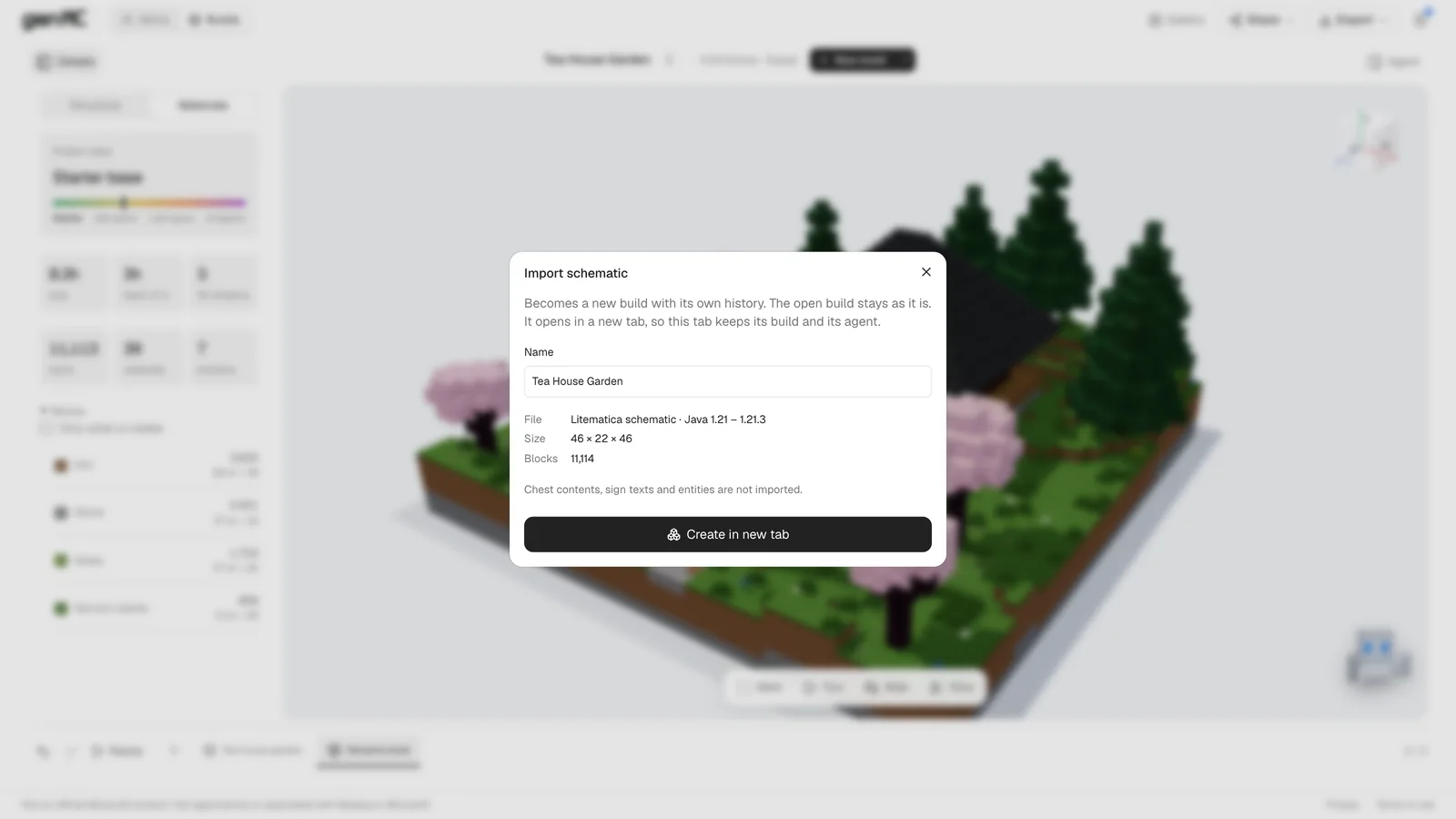
Someone sent you a schematic, you found one online, or you dug an old build out of a backup. Before you paste it into your world you want to know what is inside – and maybe your tool wants a different format, or your server runs an older version. genMC opens all the common Java Edition schematic formats in the browser and saves them again as .schem or .litematic, for the Minecraft version you pick.
What goes in, what comes out
| Format | Comes from | Open | Save |
|---|---|---|---|
.schem | WorldEdit (Sponge v1–v3), Minecraft 1.13 and newer | Yes | Yes, for Java 1.13 to 26.3 |
.litematic | Litematica | Yes, every region | Yes, as one region |
.nbt | A structure block | Yes | – |
.schematic | MCEdit, Schematica, old WorldEdit (1.12 and older) | Yes | – |
.mcfunction | A datapack function | – | Yes |
Files can be up to 200 MB. genMC works with Java Edition files; Bedrock formats are not supported.
Step 1: Open the file
- Open the build studio.
- Choose the arrow next to New build, then Minecraft schematic…, and pick the file.
- Before anything is created, the dialog shows the file's format, Minecraft version, size and block count. Give the build a name and confirm.
The schematic becomes a new build with its own history. Whatever was open before stays as it is. No account is needed: the build is saved privately in your browser.
Step 2: Look inside
This is where a schematic stops being a file name:
- Turn and zoom the 3D view to see it from every side.
- Walk puts you inside at eye height – WASD to move, drag to look.
- Slice cuts the build open layer by layer, the quickest way to check interiors and hidden redstone.
- Redstone runs. Click levers and buttons and watch pistons, lamps and note blocks react (more about that).
- Materials in the Details sidebar counts every block as stacks and shulker boxes – handy before a survival build (more about that).
Step 3: Save it in another format or version
Open Export in the header and choose WorldEdit schematic · .schem or Litematica · .litematic. In the dialog, pick your Minecraft version – from Java 26.3 back to 1.13 – and download.
The file is written the way that version names its blocks, so WorldEdit and Litematica there accept it. A .schem becomes Sponge v3 for 1.21 and newer, v2 for 1.16 to 1.20.6 and v1 for 1.13.2–1.15.
Common conversions
- .litematic → .schem: open the Litematica file, export as WorldEdit schematic. Multi-region files are read completely and come out as one piece.
- .schem → .litematic: open it, export as Litematica, load it as a placement in game and build along the hologram.
- .nbt → .schem: handy for structures saved with a structure block that you want to paste with WorldEdit.
- Old .schematic → today: files from Minecraft 1.12 and older use numeric block IDs. genMC translates them, and renamed blocks get today's name (grass becomes short grass, an old sign an oak sign).
- New build → older server: choose the older version on export. Blocks that version doesn't have yet are replaced by the closest older block – pale oak becomes birch, tuff bricks become stone bricks – and the dialog lists every replacement after the download. Small decorations with no older counterpart, such as candles or leaf litter, are left out.
Playing a patch inside a range, like 1.20.1 in Java 1.20 – 1.20.2? Choose that range. Newer patches upgrade the file themselves.
What doesn't come along
genMC builds are blocks with their states – stairs keep their direction, doors their halves. Some things are not part of that:
- Chest contents, sign text and entities (mobs, armour stands, item frames) are not imported.
- Blocks genMC doesn't know – from mods, or removed from the game – are left out, and the import dialog lists them.
- Size: a build can be at most 768 blocks in each direction and hold 10 million blocks.
So genMC is the right tool for structures – houses, castles, cities, contraptions – not for moving a stocked base with all its loot.
Then make it yours
An imported schematic is a build like any other. Connect your agent and ask for changes: "add a harbour on the east side", "turn this into a winter scene", "build a matching tavern next to it". How that works step by step is in How to build in Minecraft with Claude.
Looking for something to open? Every build in the gallery downloads directly as .schem or .litematic for your version – or opens as your own copy in the studio. All details are in Export, import and Minecraft.
Try it with your own agent.
genMC is free and needs no account. Open the studio, connect the agent you already use and build together.