
How to build in Minecraft with Claude
A step-by-step guide – connect Claude or Claude Code to genMC, describe a build, point at what should change, walk through it and bring it into your Minecraft world as a schematic.
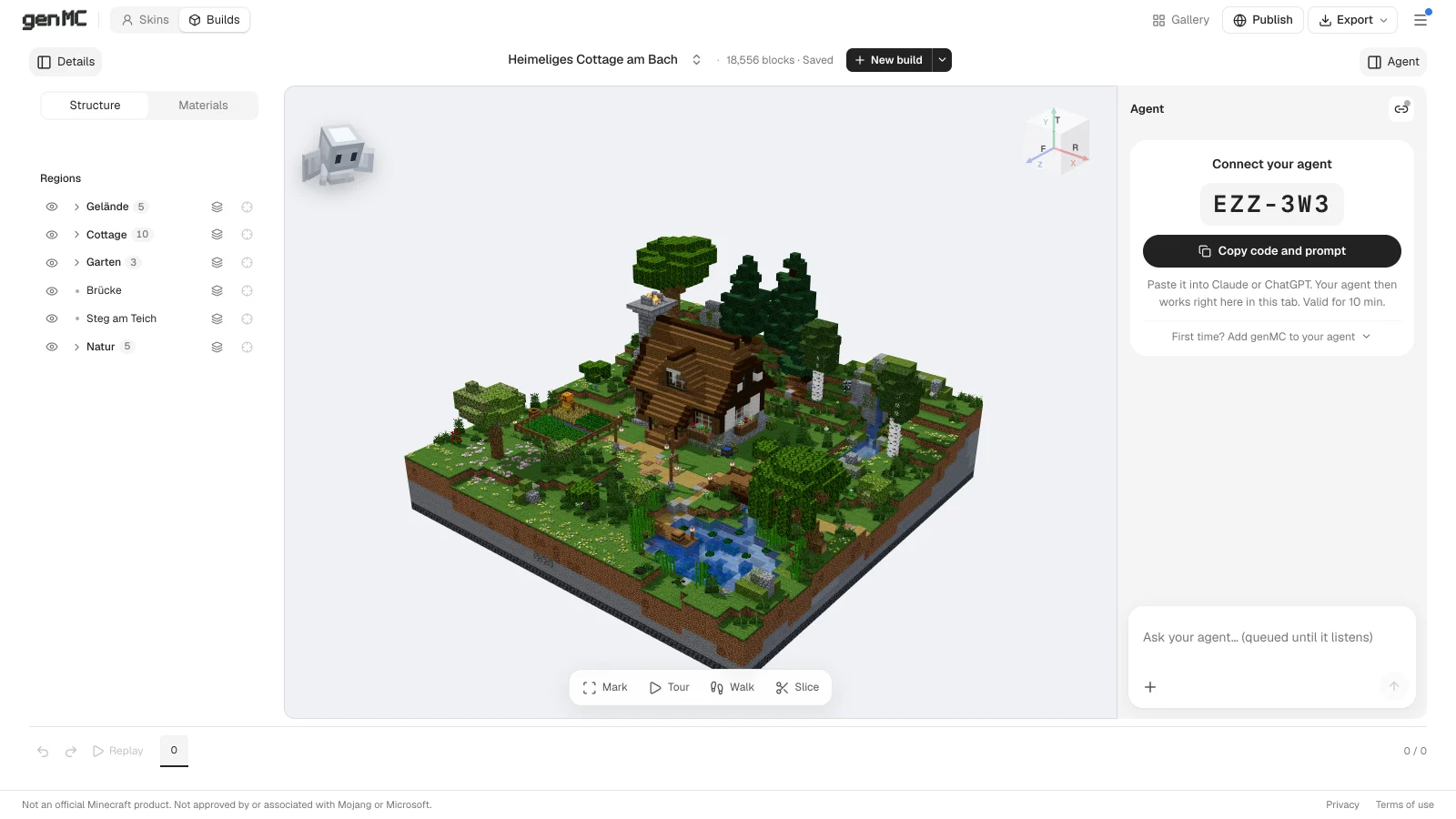
Claude is surprisingly good at building in Minecraft – if it can see what it builds and you can point at what you mean. That is what genMC is for: a free build studio in the browser that Claude controls over MCP while you watch. This guide takes you from zero to a build in your own world. It works the same with ChatGPT, Claude Code, Codex or Cursor.
What you need
- Claude – on claude.ai, in the desktop app or Claude Code. Any plan that lets you add a custom connector works.
- A browser with WebGL 2 (any current Chrome, Edge, Firefox or Safari).
- For the last step only: Minecraft Java Edition with WorldEdit or Litematica.
No genMC account, no API key, no download.
Step 1: Add genMC to Claude
Do this once.
- Claude on the web or desktop: Settings → Connectors → Add custom connector, name it
genMC, URLhttps://genmc.app/api/mcp. - Claude Code: run
claude mcp add --scope user --transport http genmc https://genmc.app/api/mcpWithout --scope user, Claude Code only knows genMC in the folder where you ran the command. Start a new chat or session afterwards so the tools load.
Step 2: Open the studio and pair
Open the build studio. The agent column on the right shows a pairing code. Choose Copy code and prompt, paste it into Claude and send it. Claude calls genmc_pair, and the column says "Claude is connected".
From now on Claude works in exactly this tab. You can switch to other tabs meanwhile; keep this one open.
Step 3: Describe the build
Write what you want as you would to a person who builds well:
Some things help a lot:
- Name the style and the setting, not just the object: "a fisherman's cottage on a cliff in Cornwall" beats "a house".
- Give a size if it matters: "about 40 by 40 blocks".
- Ask for named parts: Claude sorts the build into parts like Roof, Garden or Bridge. They appear under Structure on the left, and you can hide, focus or select them later.
While Claude works, the build grows in the 3D view, and every step lands on the timeline at the bottom.
Step 4: Point at what should change
Instead of describing where in words, show it. Choose Mark in the dock and click or drag over blocks – or use Smart to pick a whole part like the roof with one click. Then write what should change:
Claude receives your marks as exact coordinates. Requests you send while it is still working reach it with its next step, so it can change course without starting over. Your own edits always come first: Claude can never silently overwrite what you changed. More in Marking blocks for your agent.
Step 5: Walk through it
Walk puts you inside the build at eye height (WASD to move, drag to look, Space and Shift up and down). Tour plays a walk-through Claude planned, room by room – ask it for one. Slice cuts the build open layer by layer, which is the quickest way to check interiors.
Anything wrong? Undo is one click away, and the timeline lets you jump back to any earlier step.
Step 6: Take it into Minecraft
Open Export in the header:
- WorldEdit schematic · .schem – put it into
config/worldedit/schematics/, then in game//schem load <name>and//paste. - Litematica · .litematic – put it into your instance's
schematicsfolder and load it as a placement.
Pick your Minecraft version first, from Java 26.3 back to 1.13; blocks your version doesn't know yet are replaced by the closest older block. The full list of formats is in Export, import and Minecraft.
Not sure what to build?
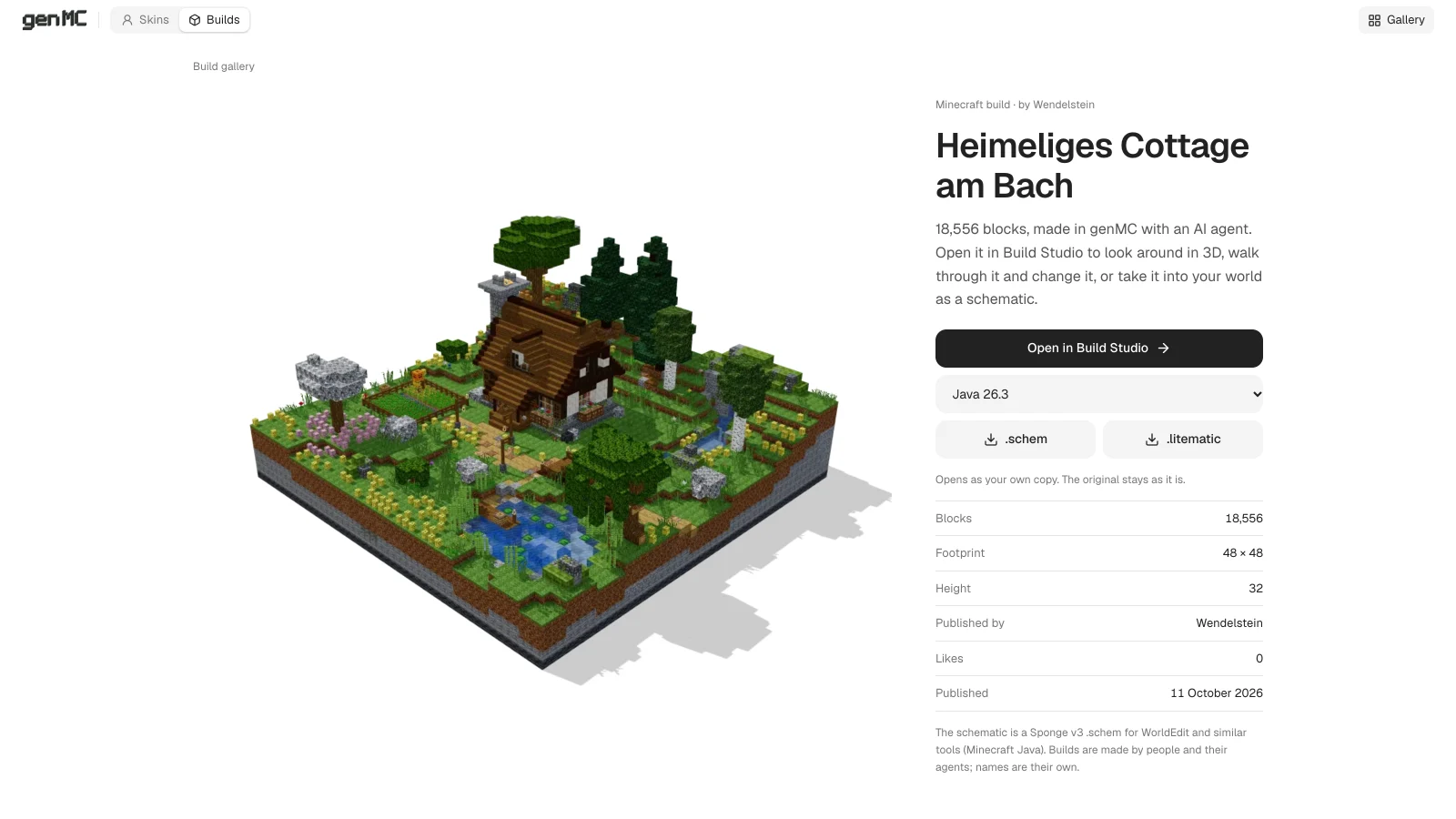
Start from someone else's build: the gallery has castles, cities, memes and whole landscapes. Open in Build Studio makes your own copy, and Claude can take it from there: "add a harbour", "turn this into a winter scene", "build a matching tavern next to it".
When something gets stuck
| Problem | Fix |
|---|---|
Claude has no genmc_pair tool | The connector isn't loaded yet. Add it again and start a new chat. |
| The code is "unknown or expired" | Codes last ten minutes and work once. Choose New code. |
| Your requests stay Queued | Claude stopped listening. Tell it "go on". |
| Claude wants to use curl or says genMC disconnected | Tell it to call genmc_status; that refreshes its tool list. |
Everything else is in Troubleshooting. Happy building!
Try it with your own agent.
genMC is free and needs no account. Open the studio, connect the agent you already use and build together.