The Minecraft skin template, explained
A Minecraft skin is a 64 × 64 picture folded around six boxes. Where the head, arms and legs sit on the sheet, what the outer layer does, why Slim skins have empty columns – and how to paint one without getting lost.
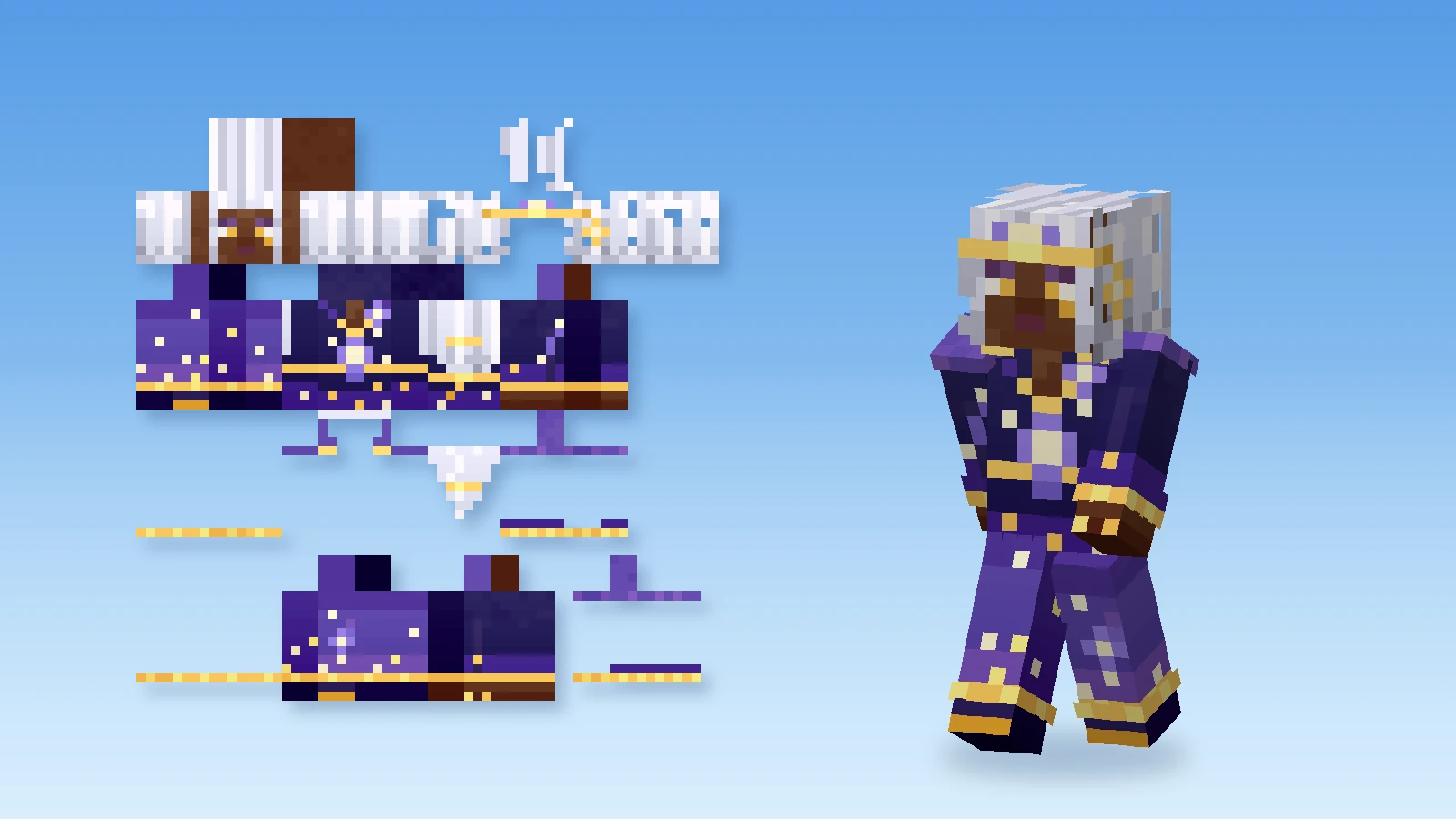
Open any Minecraft skin file and you see something that looks like a jigsaw puzzle: strips of colour, a face somewhere at the top, lots of empty space. That sheet is the whole character, unfolded. Once you know where each piece goes, painting skins gets a lot easier – by hand, or together with an agent.
Six boxes, one sheet
The player model is built from six boxes: a head, a body, two arms and two legs. A skin is a 64 × 64 pixel PNG that holds the outside of every box, laid flat.
| Part | Size (width × height × depth) |
|---|---|
| Head | 8 × 8 × 8 |
| Body | 8 × 12 × 4 |
| Arm (Classic) | 4 × 12 × 4 |
| Arm (Slim) | 3 × 12 × 4 |
| Leg | 4 × 12 × 4 |
Every box has six faces, and every box is unfolded the same way: the top and bottom sit side by side above the strip, and below them the four sides run in one row – right, front, left, back. Because the sides follow each other around the box, the strip is continuous: a belt or a stripe that crosses the right edge of the front face carries on in the left face, exactly as it wraps around the body.
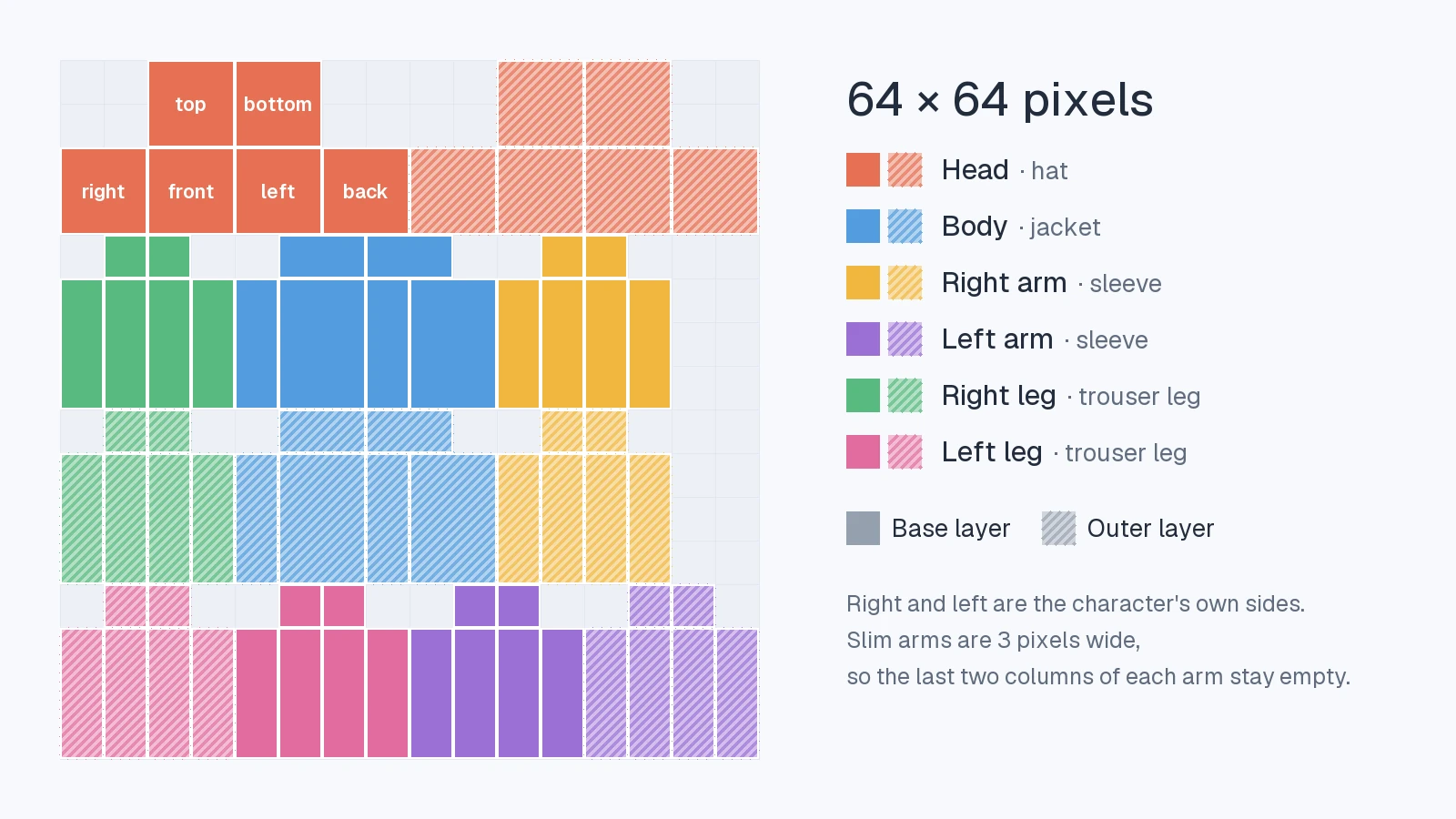
One thing trips up everyone at first: right and left are the character's own sides. In a front view, the character's right arm is on your left. That is why the right arm sits in the middle of the sheet and the left arm at the bottom.
Where everything is
The pixel position of each part's top-left corner, for the base layer and the outer layer:
| Part | Base layer | Outer layer |
|---|---|---|
| Head | 0, 0 | 32, 0 (hat) |
| Body | 16, 16 | 16, 32 (jacket) |
| Right arm | 40, 16 | 40, 32 (right sleeve) |
| Left arm | 32, 48 | 48, 48 (left sleeve) |
| Right leg | 0, 16 | 0, 32 (right trouser leg) |
| Left leg | 16, 48 | 0, 48 (left trouser leg) |
The head is the easiest piece to read: its top is the 8 × 8 square at 8, 0, and the face – the front – is the 8 × 8 square directly below it at 8, 8.
Two layers: base and outer
Each part exists twice on the sheet.
- The base layer is the body itself. Every pixel of it must be opaque. Java Edition fills transparent base pixels in, so a hole in the base usually shows up as a black patch in game.
- The outer layer is a second shell, drawn a little larger than the base – half a pixel around the head, a quarter pixel around the rest. It may be transparent, and it is where hats, hair, hoods, jackets, cuffs and boots go. Because it floats just above the base, it adds real depth.
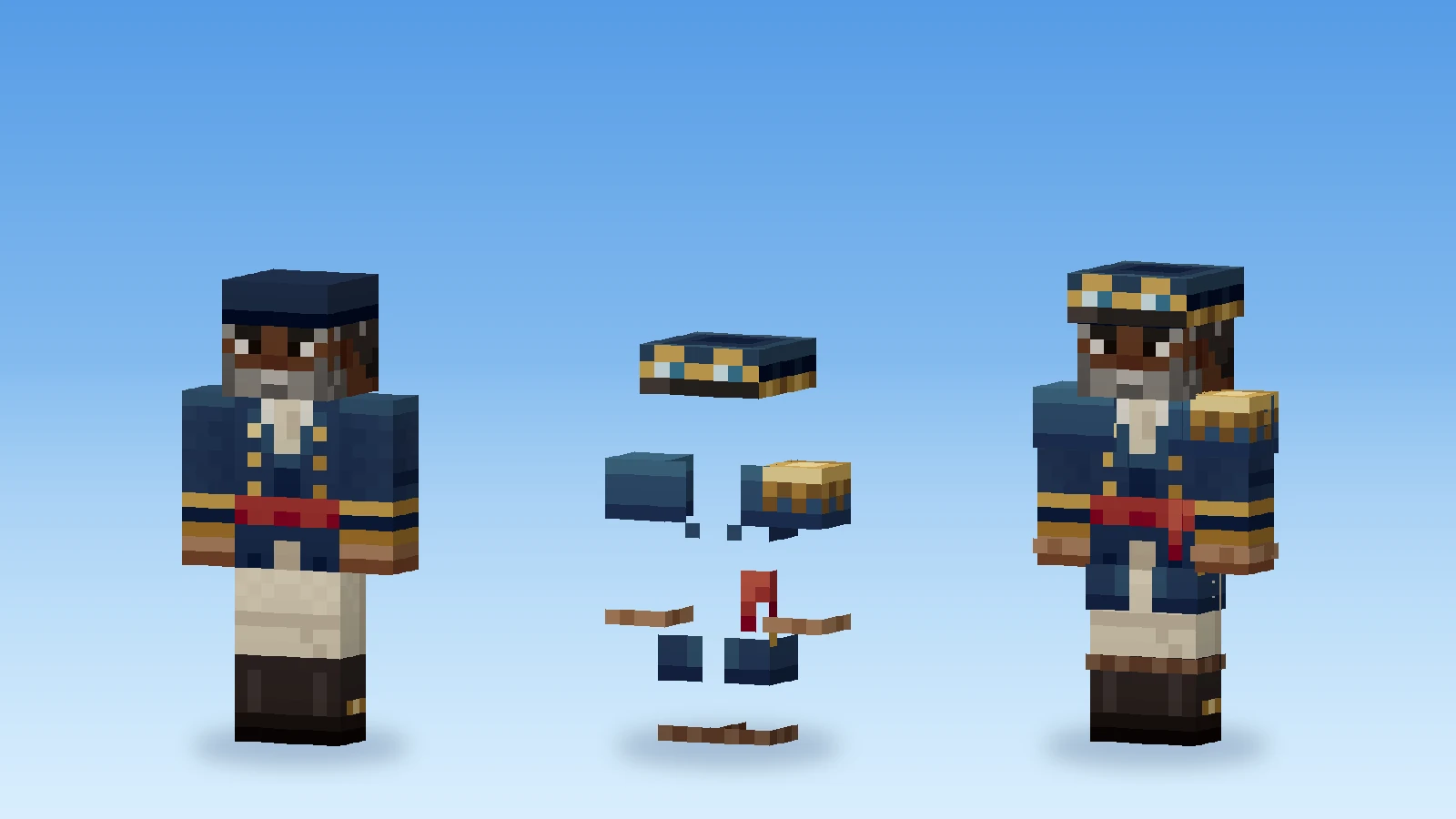
Players can switch the outer layer off piece by piece: in Java Edition under Options → Skin Customization (Hat, Jacket, the sleeves and the pants legs). So keep the important things – the face, the outfit's main colours – on the base, and use the outer layer for what should stand out.
Classic and Slim
The only difference between the two models is the arms: Classic arms are 4 pixels wide, Slim arms 3. On the sheet, a Slim arm's front, back, top and bottom are one pixel narrower and the faces after them move up, so the last two columns of each arm area stay empty.
A skin is painted for one model, and you choose the same model when you add it to Minecraft. If you pick the wrong one, the arms come out with dark stripes or shifted edges – How to change your Minecraft skin shows what that looks like.
Old skins: 64 × 32
Before Minecraft 1.8, skins were 64 × 32: only the top half of today's sheet. They had a hat but no other outer layer, and the left arm and leg were simply mirror images of the right ones. Minecraft still reads them. genMC converts a 64 × 32 skin into a 64 × 64 Classic skin when you import it, so you can paint the left side separately and add a jacket.
Tips for painting on the sheet
- Start with the base, then add the outer layer for depth – a fringe of hair over the forehead, a collar, folded cuffs.
- Paint around the box, not face by face. Seams on clothing, belts and stripes should line up across the right, front, left and back faces.
- Check the tops and bottoms. The top of each arm is the shoulder; the bottom of each leg is the sole of the shoe. They are small, but people see them.
- Shade from one light. Pick a direction – top-left is common – and keep it on every face.
- Look at it in 3D often. The sheet hides how pieces meet; the figure does not.
Painting it in genMC
You don't have to memorise any of this. The skin studio shows the same skin three ways: 3D, the flat 2D sheet, and Split with both side by side – hover a pixel in one and the same pixel lights up in the other. Face labels on the 2D sheet are one switch away under Menu → Settings. Body parts and layers lets you pick one part and the layer you paint on, so you can't spill onto the arm by accident, and the eraser only ever touches the outer layer. All of it is in Skin studio basics.
Your agent knows the sheet by heart, too. Ask it to "run a gold trim around both sleeves on the outer layer" or "give her a hood that stays removable", and it places every pixel on the right face – then renders the figure from all sides to check. How to make a Minecraft skin with AI shows the whole flow.
Want a sheet to practise on? Take a finished skin from the skin gallery, open it in the studio and switch to 2D: a finished skin is the best template there is.
Try it with your own agent.
genMC is free and needs no account. Open the studio, connect the agent you already use and build together.