How to make a Minecraft skin with AI
Describe a character and let your own AI agent paint the 64 × 64 skin pixel by pixel in genMC's skin studio – free, in the browser. Then fix details yourself and load it into Minecraft.
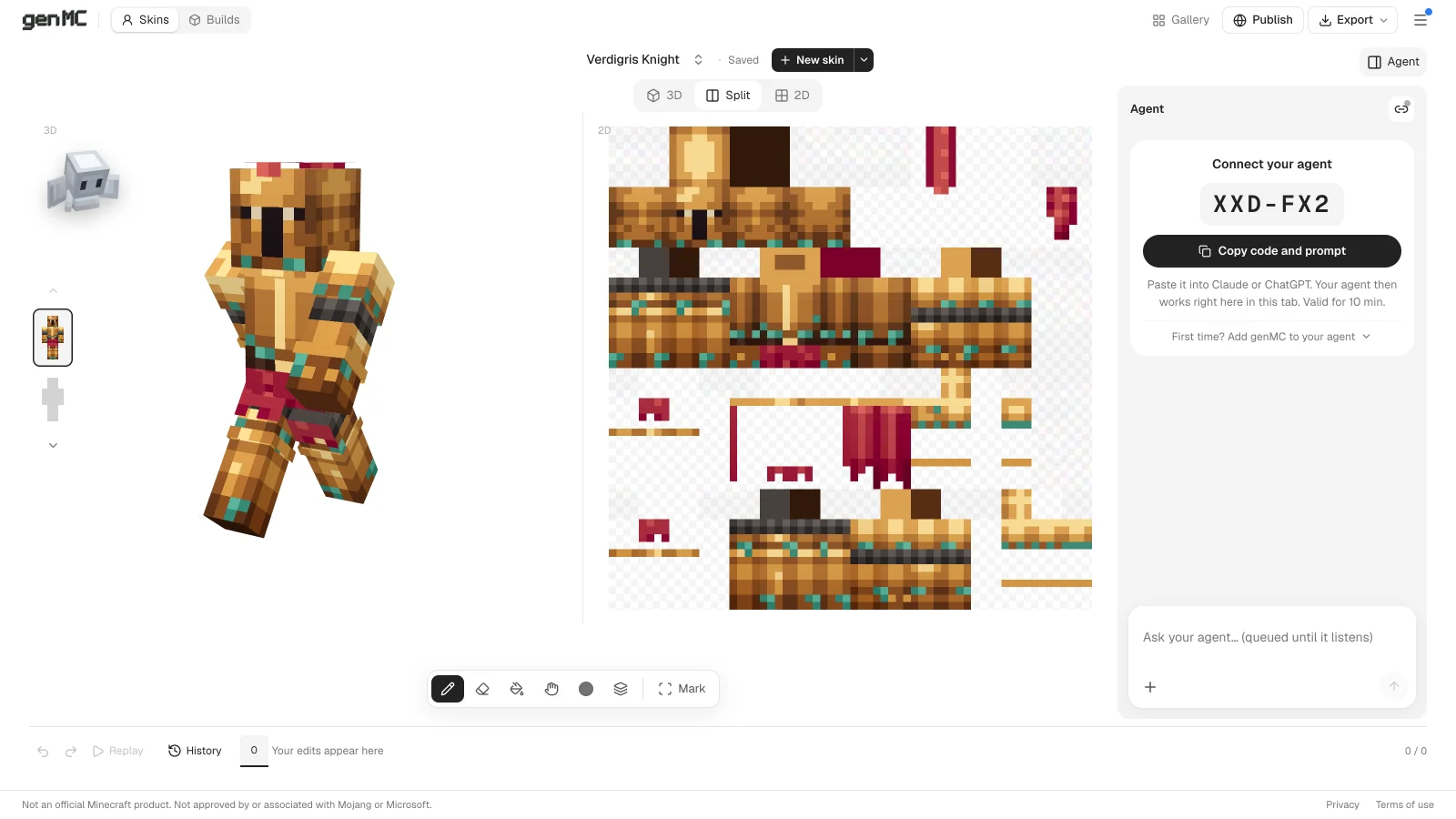
Most AI skin generators turn a prompt into a picture and squeeze it onto the skin layout. The result often looks blurry in game: shading in the wrong places, faces that fall apart at 8 × 8 pixels. genMC does it differently. Your own agent – Claude, ChatGPT, Claude Code or another MCP client – paints the skin pixel by pixel in a real skin editor, looks at the result from every side and fixes it. You can step in at any moment.
What you need
- An AI agent that can use MCP servers, with genMC added once: the server URL is
https://genmc.app/api/mcp. Connect an agent shows the exact step for Claude, ChatGPT, Claude Code, Codex and Cursor. - A browser. No account, no download, no credits.
Step 1: Open the skin studio and pair
Open the skin studio. The agent column on the right shows a pairing code: choose Copy code and prompt, paste it into your agent's chat and send it. As soon as the column says your agent is connected, it paints in exactly this tab.
Step 2: Describe the character
Describe the character, the colours and the mood – the more concrete, the better:
Good to know:
- Classic or Slim: Classic has 4-pixel arms, Slim 3-pixel arms. Say which one you want, or let the agent choose.
- Two layers: the base is the body itself, the outer layer is a second shell for hats, hoods, jackets and hair. Ask for a hood "on the outer layer" and it stays removable in game.
- Styles: after a request the agent column offers style directions – Simple, Balanced, Graphic and Strong shading. One click restyles the whole skin. See Styles and skin options.
- Several options: "show me three versions of this armour" gives you three skins side by side to compare.
Step 3: Point at details and refine
Choose Mark and brush over the part you mean – a belt buckle, the eyes, one sleeve. Then write what should change: "make this gold", "the eyes should glow cyan". Your marks travel with the request, so the agent knows exactly which pixels you mean.
You can always paint yourself, too: pencil, eraser, face fill and colour presets are in the dock, and Split view shows the flat texture and the 3D figure side by side, so you see where every pixel lands. Every change is on the timeline and can be undone. More in Painting and colors.
Step 4: Put it into Minecraft
Open Export → Skin for Minecraft. You get a 64 × 64 PNG, exactly as Minecraft expects it. In the Minecraft Launcher: Skins → New skin, choose the file and the same model (Classic or Slim). Export → Rendering saves a picture of the character instead – for a profile picture or a post. Details in Import, export and renderings.
Remix instead of starting from scratch
You don't have to start with an empty skin:
- From player name (the arrow next to New skin) loads any Minecraft Java player's current skin as your own private copy.
- The skin gallery has hundreds of free skins, including our 220-skin drop – also as one ZIP. Open in the skin studio and ask your agent: "give her a winter coat", "turn this into a zombie version".
Why pixel by pixel matters
A skin is tiny: the whole face is 8 × 8 pixels. At that size, every pixel is a decision – where the eye highlight sits, which side of the nose gets the shadow. An agent that paints in a real editor can make those decisions, check them in 3D from the front, back and sides, and correct them. That is why skins made this way look crisp in game instead of like a shrunken photo.
Try it: open the skin studio, paste the code, and describe the character you've always wanted to play.
Try it with your own agent.
genMC is free and needs no account. Open the studio, connect the agent you already use and build together.