
How to change your Minecraft skin on Java, Bedrock and phone
Get a skin file, add it in the Minecraft Launcher or the Dressing Room, and pick the right arm model. Step by step for Java Edition, Bedrock on PC and phones, what works on consoles – and how to fix a skin that looks wrong.
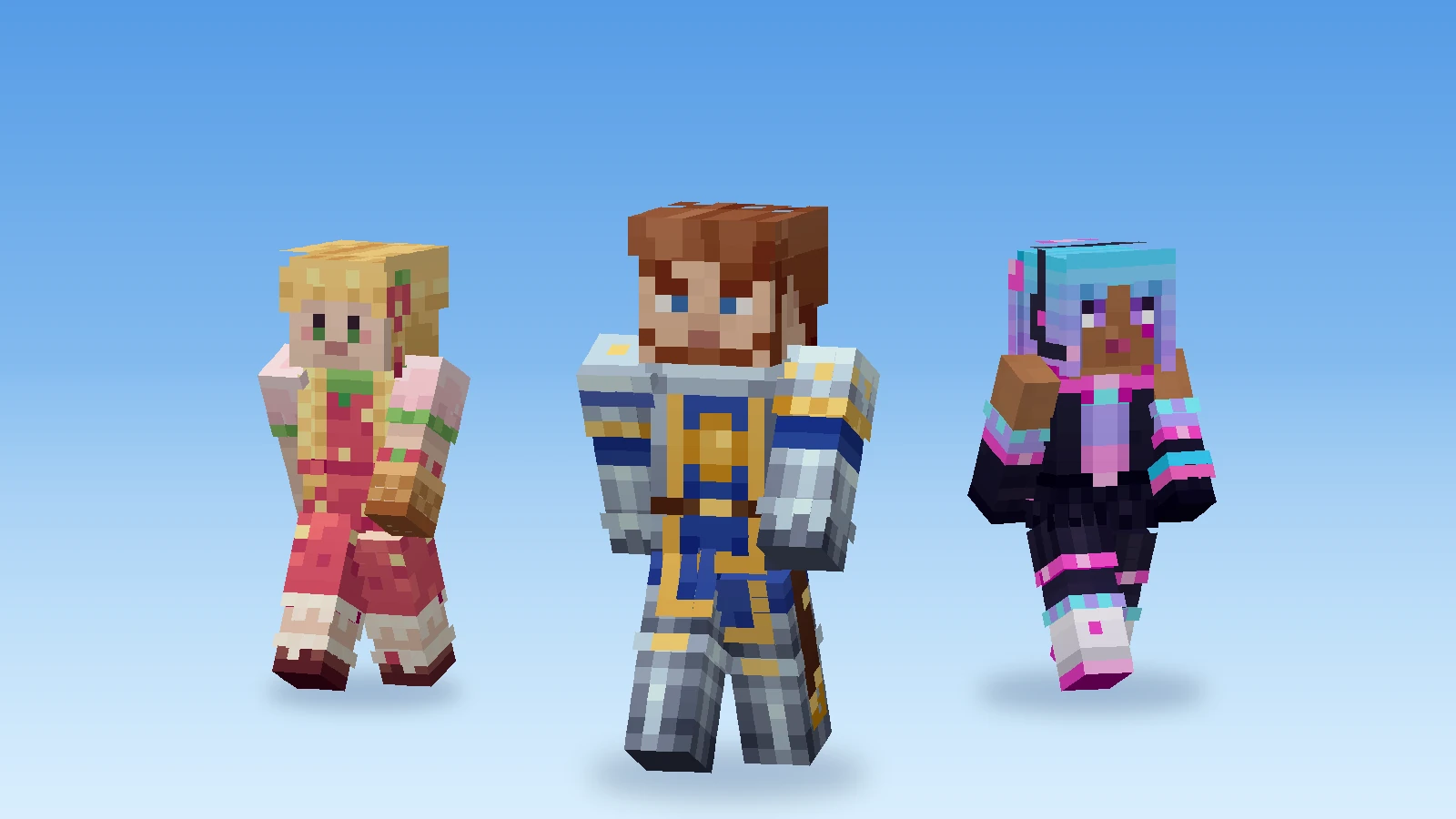
Changing your skin takes two minutes once you have the file. This guide covers where to get a skin, how to add it in Java Edition and in Bedrock, what consoles allow, and the one setting that most often goes wrong.
Step 1: Get a skin file
A Minecraft skin is a 64 × 64 PNG. You need that file, and you need to know whether it was made for the Classic model (4-pixel arms) or the Slim model (3-pixel arms). Three ways to get one:
- Pick one. The skin gallery has hundreds of skins to choose from. A skin's page names its model and has Download PNG.
- Make one. In the skin studio you paint your own – by hand, or by describing the character to your AI agent, which paints it pixel by pixel. See How to make a Minecraft skin with AI.
- Change one. From player name (the arrow next to New skin) loads any Java player's current skin as your own copy – yours, too. Recolour the hoodie, add a hat, done.
In the studio, Export → Skin for Minecraft saves the PNG. The model is shown under Body parts and layers; remember it for the next step.
Step 2a: Java Edition
- Open the Minecraft Launcher and choose Minecraft: Java Edition on the left.
- Open the Skins tab and choose New skin.
- Give it a name, choose Classic or Slim – the same model the skin was made for – and browse to your PNG.
- Choose Save & Use.
Your new skin shows up the next time you join a world or server. On a busy server it can take a minute to appear for others. In game, Options → Skin Customization switches parts of the outer layer – hat, jacket, sleeves, pants legs – on and off.
Step 2b: Bedrock on Windows, Android and iOS
- On the main menu, open the Dressing Room.
- Go to Classic Skins, then Owned.
- Choose Import → Choose New Skin and pick your PNG.
- When Minecraft asks for the model, choose the one the skin was made for.
Bedrock does not sync imported skins between devices: import the file again on each phone, tablet or PC you play on.
Consoles
Xbox, PlayStation and Switch can't import your own PNG files. There you are limited to the Character Creator and skins from the Marketplace. If you play on a console and on PC or phone, you can still wear your own skin on those.
When the skin looks wrong
Dark stripes or cut-off arms. The model doesn't match. A Slim skin added as Classic gets a dark stripe along each arm, because Minecraft fills the unused columns in; a Classic skin added as Slim loses a column of its arms. Add the skin again with the other model.
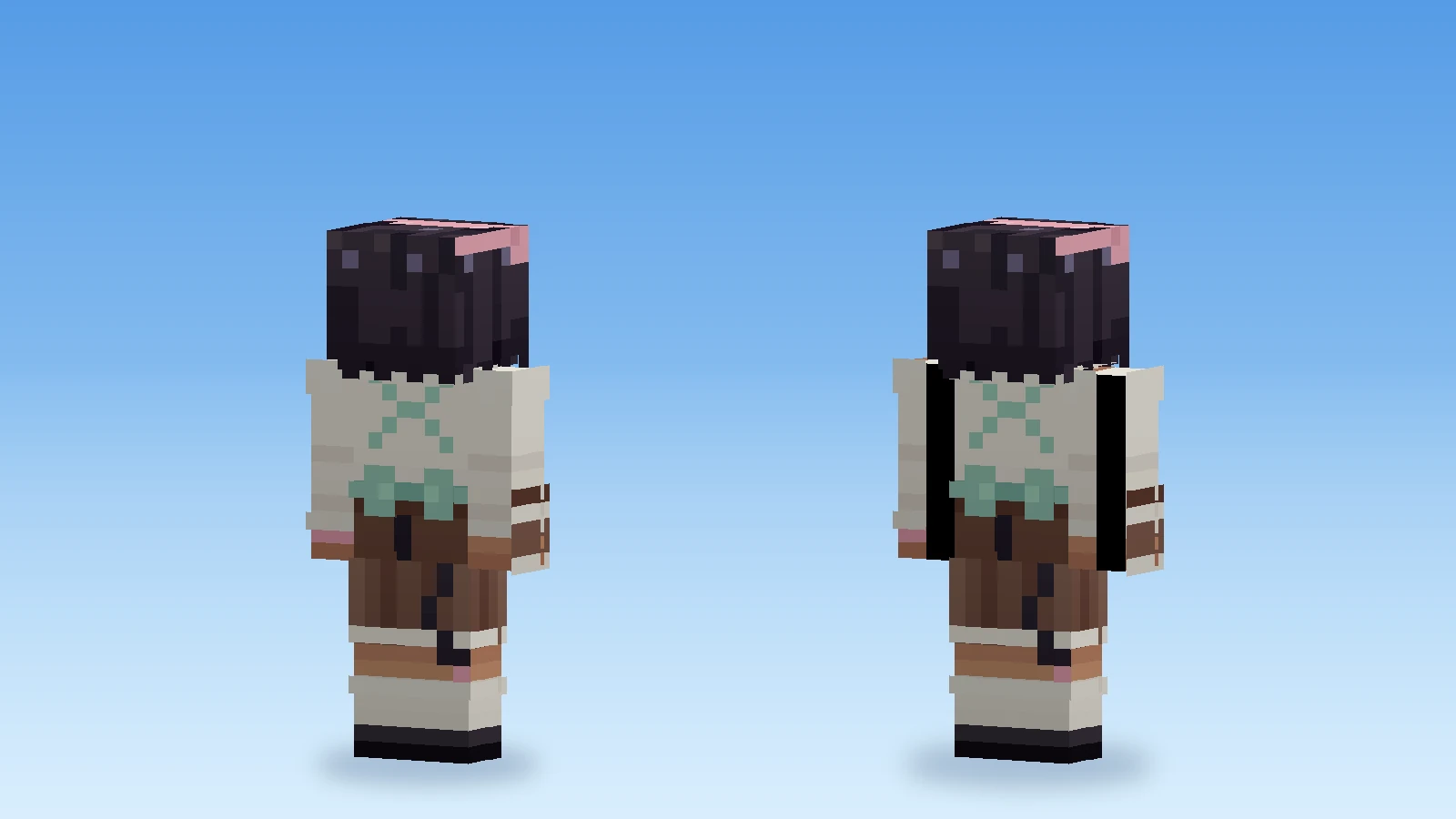
Black patches on the body. The base layer has transparent pixels. Minecraft draws them filled in, usually black. Paint them in, or open the skin in genMC: its base layer is always opaque, so a skin exported from the studio can't have this problem.
The file is refused or looks scrambled. It isn't a 64 × 64 (or old 64 × 32) PNG – perhaps a screenshot or a render of a skin rather than the skin itself. Download the actual skin file. genMC imports old 64 × 32 skins and saves them as 64 × 64.
Other players see the default skin. Some servers run in offline mode and can't load skins from Minecraft's servers. That is a setting of the server, not a problem with your file.
Bonus: a picture of your skin
For a profile picture, a thumbnail or a server page, you want a picture of the character, not the flat texture. In the skin studio, Export → Rendering saves one: front, back, either side or perspective, in the size you choose, on a transparent, light or dark background. Load your current skin with From player name, and you have your profile picture in a minute – details in Import, export and renderings.
If you want to understand what is actually on that 64 × 64 sheet, The Minecraft skin template, explained takes it apart piece by piece.
Try it with your own agent.
genMC is free and needs no account. Open the studio, connect the agent you already use and build together.